The Two Sides of GST Invoicing: Adding Tax vs. Back-Calculating Base
Whenever you handle a taxable transaction in India, you are looking at the price from one of two directions:
- Exclusive of GST (Base Price Given): You know the net cost of production, services, or wholesale goods, and you must add statutory tax on top to determine the final invoice value.
- Inclusive of GST (Gross Total or MRP Given): The customer has handed you a gross amount (or you are examining an MRP-marked package), and you must work backward to separate the vendor's actual taxable turnover from the government's tax collection.
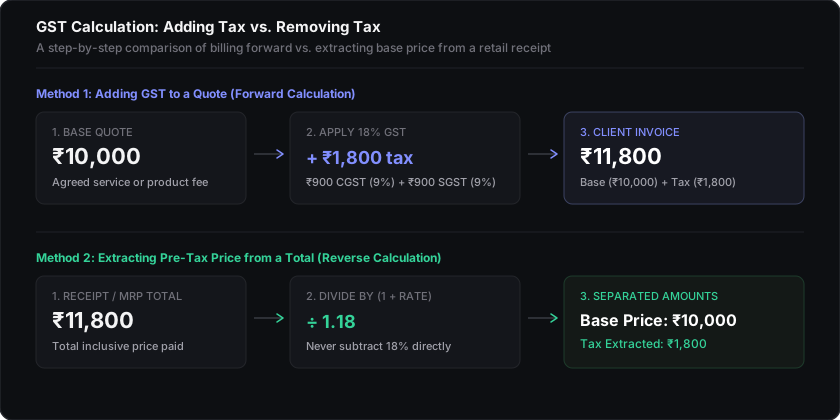
The most common bookkeeping error made by business owners and freelancers is trying to remove GST by subtracting the percentage. If you punch ₹11,800 − 18% on a standard calculator, you subtract ₹2,124, arriving at ₹9,676. That leaves your books short by ₹324. The real pre-tax price is ₹10,000, and the tax collected is ₹1,800. Because tax was originally calculated on the smaller base, removing it requires division, not direct subtraction.
How to Add GST to a Base Price (Exclusive Calculation)
When you quote a rate for services, consulting, contract manufacturing, or wholesale supplies, the price agreed upon is almost always the taxable base value. Statutory GST must be computed and added on top.
Step-by-Step Example
Suppose an independent software developer in Bengaluru bills a client in Mumbai ₹50,000 for web development services. Under SAC Code 998314, software services attract the standard 18% GST slab. Because this is an inter-state supply (Karnataka to Maharashtra), Integrated GST (IGST) applies:
- Base Taxable Value: ₹50,000.00
- GST Amount Calculation: (₹50,000 × 18) ÷ 100 = ₹9,000.00
- Total Invoice Amount: ₹50,000 + ₹9,000 = ₹59,000.00
Note: If the client were also located inside Karnataka (intra-state transaction), the ₹9,000 tax amount would split equally into 9% Central GST (CGST = ₹4,500) and 9% State GST (SGST = ₹4,500).
How to Remove GST from a Total (Reverse Calculation)
In retail environments, hotel bookings, consumer electronics purchases, and all-inclusive freelance contracts, you are provided with the gross inclusive amount. To file tax returns accurately, you must back-calculate the original taxable value and exact GST component.
Mathematical Derivation: Why this Formula Works
Let T represent the Total Inclusive Price, B represent the Base Taxable Price, and R represent the statutory GST Rate.
Step-by-Step Proof:
Real-World Hardware Example
You purchase an office laptop from a local electronics store for ₹70,800 including 18% GST:
- Gross Amount Paid: ₹70,800.00
- Base Price Derivation: ₹70,800 ÷ 1.18 = ₹60,000.00
- Embedded GST Amount: ₹70,800 − ₹60,000 = ₹10,800.00
- Intra-State Split: ₹5,400 CGST (9%) + ₹5,400 SGST (9%)
Your company records ₹60,000 as a capital asset expense and credits ₹10,800 to your electronic credit ledger as recoverable Input Tax Credit.
Statutory Slabs & Quick Reverse Multipliers
Multiply any gross total by the Base Factor to find the pre-tax price, or by the Tax Factor to extract the exact tax amount in a single operation:
| GST Slab | Typical Goods / Services | Base Factor (Divide by) | Tax Multiplier | Intra-State Split |
|---|---|---|---|---|
| 5% GST | Packaged food grains, medicines, EV vehicles | 1.05 | × 0.047619 | 2.5% CGST + 2.5% SGST |
| 12% GST | Business computers, dairy machinery, hotels | 1.12 | × 0.107143 | 6% CGST + 6% SGST |
| 18% GST | Software, IT services, electronics, consulting | 1.18 | × 0.152542 | 9% CGST + 9% SGST |
| 28% GST | Automobiles, high-end motorbikes, ACs | 1.28 | × 0.218750 | 14% CGST + 14% SGST |
Excel Formulas for GST Calculation
When managing billing in Microsoft Excel or Google Sheets, implementing correct dynamic formulas prevents rounding discrepancies. Assume cell A2 contains the transaction amount, and cell B2 contains the GST slab rate (e.g., 18):
Scenario A: Adding GST (Exclusive)
// Calculate GST Amount only:
=ROUND(A2 * (B2 / 100), 2)
// Calculate Gross Total Price:
=ROUND(A2 * (1 + (B2 / 100)), 2)
Scenario B: Removing GST (Inclusive)
// Extract Pre-Tax Base Price:
=ROUND(A2 / (1 + (B2 / 100)), 2)
// Extract Embedded GST Amount:
=ROUND(A2 - (A2 / (1 + (B2 / 100))), 2)
Tip on Rounding: Under Section 170 of the CGST Act, always wrap tax amounts in the ROUND(..., 2) function. Fractions of fifty paise or more round up to the nearest rupee.
How to Calculate GST on Normal & Business Calculators
Whether you are using a smartphone calculator app or a desktop calculator with tax keys, here are the keystroke sequences:
Standard Calculator (Without Dedicated TAX Keys)
Use decimal multipliers to eliminate multistep memory operations:
- To Add 18% GST: Type
[10000] × 1.18 [=]→ ₹11,800. - To Remove 18% GST: Type
[11800] ÷ 1.18 [=]→ ₹10,000 base.
Dedicated GST Calculators (Casio MJ-120GST, Citizen)
How to program and operate the dedicated [TAX+] and [TAX-] keys:
- Press the [AC] key to clear pending calculations.
- Press and hold the [% / SET] key until 'SET' flashes.
- Type the tax slab rate (e.g.
[1] [8]for 18%). - Press [% / SET] once more to permanently save the rate.
Press [TAX+] to add tax, or [TAX-] to extract the pre-tax base.
Is a GST Calculator Allowed in ICAI CA Exams?
Under official guidelines issued by the Institute of Chartered Accountants of India (ICAI), battery-operated, portable non-programmable calculators with up to 6 arithmetic functions and 12 digits (such as Casio MJ-120D Plus and Citizen CT-500) are permitted. Scientific calculators and devices with QWERTY alphabetic keys are strictly prohibited.
The MRP Rule: Can Retailers Charge Extra GST at the Counter?
Under the Legal Metrology (Packaged Commodities) Rules and circulars issued by the Central Board of Indirect Taxes and Customs (CBIC), the Maximum Retail Price (MRP) printed on pre-packaged goods is strictly all-inclusive.
Retailers cannot legally add extra GST on top of the stated MRP at checkout. If an item has an MRP of ₹500 at 18% GST, the retailer must reverse-calculate the taxable base (₹500 ÷ 1.18 = ₹423.73) and show ₹423.73 base + ₹76.27 GST, keeping the final payable total at exactly ₹500.00.
Frequently Asked Questions
What is the formula to calculate GST from a base price (Exclusive)?
To calculate GST on a pre-tax base amount, multiply the base value by the applicable GST rate percentage and divide by 100: GST Amount = (Base Taxable Value × GST Rate%) / 100. Total Invoice Amount = Base Taxable Value + GST Amount. For example, on a ₹10,000 base price at 18% GST, the tax is ₹1,800 and the final invoice is ₹11,800.
How do you calculate reverse GST from an inclusive total (MRP)?
To remove GST from an inclusive amount, divide the gross total by 1 plus the tax rate as a decimal: Base Taxable Value = Total Inclusive Amount / [1 + (GST Rate% / 100)]. The embedded GST amount is then Total Inclusive Amount - Base Taxable Value. For example, for an 18% GST-inclusive bill of ₹11,800: Base = ₹11,800 / 1.18 = ₹10,000, and GST = ₹1,800.
Why is subtracting 18% from an inclusive total mathematically incorrect?
Subtracting 18% directly from an inclusive total is mathematically incorrect because the original tax was calculated on the smaller base value, not the gross total. If you take 18% off ₹11,800, you subtract ₹2,124 to get ₹9,676, which is incorrect by ₹324. The real pre-tax base is ₹10,000.
How do I calculate GST on a normal mobile or desk calculator?
On a normal calculator without TAX buttons: To add 18% GST, enter the base price and press [×] 1.18 [=]. To remove 18% GST, enter the gross inclusive total and press [÷] 1.18 [=]. On calculators with a percentage key, you can enter [Base] [+] [18] [%] to see the inclusive total directly.
How do you program the tax rate on a Casio or Citizen GST calculator?
On Casio GST calculators (such as the MJ-120GST): 1. Press [AC]. 2. Press and hold the [% / SET] key until 'SET' or 'TAX%' flashes on screen. 3. Enter your tax rate (e.g., [1] [8] for 18%). 4. Press [% / SET] again to save. Now, type any amount and press [TAX+] to add tax, or [TAX-] to remove tax and extract the pre-tax base.
Can a shopkeeper legally charge extra GST on top of the printed MRP?
No. Under the Legal Metrology (Packaged Commodities) Rules, the Maximum Retail Price (MRP) printed on goods is strictly all-inclusive of all statutory taxes. Charging any amount above the printed MRP under the pretext of GST is an illegal practice punishable by law.
What are the Excel formulas for GST calculation?
In Excel, if cell A2 is the amount and B2 is the GST rate (e.g., 18): To add GST (Exclusive): Total = ROUND(A2 * (1 + (B2 / 100)), 2). To remove GST (Inclusive): Base = ROUND(A2 / (1 + (B2 / 100)), 2), and GST Amount = ROUND(A2 - (A2 / (1 + (B2 / 100))), 2).